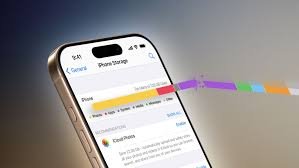
Why iPhone Storage Is Always Full Even After Deleting Files (And How to Fix It)
If you’ve ever deleted photos, videos, apps—even entire conversations—only to see your iPhone still screaming “Storage Almost Full,” you’re not imagining things. This is one of the most common iPhone problems users face, and it can be incredibly frustrating.
You clear space, restart your phone, and yet nothing changes.
So why does iPhone storage stay full even after deleting files? And more importantly, how do you fix it for good?
Let’s break it down in plain English.
Why iPhone Storage Fills Up So Fast
Apple designs iPhones to be powerful, fast, and seamless—but storage management isn’t always transparent. Several hidden factors quietly consume space without you realizing it.
1. “System Data” Is Eating Your Storage
One of the biggest culprits is System Data (formerly called “Other Storage”).
System Data includes:
- Cached files
- Temporary system files
- App data and logs
- Siri voices
- Streaming buffers
- Software update leftovers
Even after deleting photos or apps, System Data can keep growing and take up 10GB–30GB or more.
You’ll find it by going to:
Settings → General → iPhone Storage
Unfortunately, Apple doesn’t allow you to delete System Data directly, which makes it feel like storage is “stuck.”
2. Deleted Files Aren’t Really Gone Yet
When you delete something on an iPhone, it often goes to a holding area first.
Examples:
- Photos go to Recently Deleted (kept for 30 days)
- Notes and Files may also have deleted folders
- Messages with attachments remain cached
Until you permanently delete these files, your storage won’t free up.
📌 Fix:
Go to Photos → Albums → Recently Deleted and clear it manually.
3. Apps Keep Cached Data Even After You Delete Content
Social media and streaming apps are notorious for this.
Apps like:
- TikTok
- YouTube
- Netflix
- Spotify
They store cached images, videos, and offline data that don’t disappear when you delete files inside the app.
In some cases, even uninstalling and reinstalling an app is the only way to fully clear its cache.
4. iMessage Attachments Take More Space Than You Think
Photos, videos, voice notes, and GIFs sent through iMessage can silently consume gigabytes of space.
Even if you delete message threads, attachments may remain stored locally for faster access.
📌 Check this:
Settings → General → iPhone Storage → Messages
You’ll often be shocked by how much space messages alone take.
5. iCloud Sync Can Confuse Storage Numbers
Many people assume using iCloud automatically saves space—but that’s not always true.
If:
- “Optimize iPhone Storage” is off
- You’re syncing full-resolution photos
- iCloud Drive is downloading files locally
Then your iPhone will keep full copies of files, even though they’re backed up.
📌 Fix:
Enable Optimize iPhone Storage under:
Settings → Photos
6. Software Updates Leave Junk Behind
When iOS downloads an update, it stores temporary files. Even after installing the update, some leftover files remain.
Over time, multiple updates can pile up unnecessary system junk.
This is one major reason storage feels permanently full after updates.
7. Safari and App Browsing Data Adds Up
Websites store:
- Cookies
- Images
- Offline data
- Tracking scripts
Safari alone can take several gigabytes if you browse frequently.
📌 Clear it:
Settings → Safari → Clear History and Website Data
Why Storage Doesn’t Update Immediately
Another confusing part is that iPhone storage doesn’t always refresh in real time.
Apple’s system may:
- Delay recalculating storage
- Prioritize performance over cleanup
- Keep temporary files “just in case”
That’s why deleting files doesn’t instantly reflect in storage numbers.
A restart sometimes helps—but not always.
How to Actually Fix iPhone Storage Issues (Proven Methods)
Here are practical solutions that work.
1. Restart Your iPhone (Yes, Really)
Restarting forces iOS to:
- Clear temporary caches
- Recalculate storage
- Remove unused system files
It’s simple but surprisingly effective.
2. Offload or Reinstall Heavy Apps
Instead of deleting apps completely:
- Use Offload App to remove the app but keep its data
- Or uninstall and reinstall to clear cached junk
Go to:
Settings → General → iPhone Storage → Select App
3. Reduce Message Storage Automatically
Set messages to delete older content automatically.
📌 Path:
Settings → Messages → Keep Messages → 30 Days or 1 Year
This prevents storage buildup over time.
4. Clear iCloud Sync Issues
If iCloud is stuck syncing:
- Turn iCloud Photos off
- Restart your phone
- Turn it back on
This often clears duplicated or stuck files.
5. Reset Storage Without Losing Data (Advanced Fix)
If nothing works, a backup and restore is the cleanest solution.
Steps:
- Back up your iPhone to iCloud or a computer
- Erase all content and settings
- Restore from backup
This removes years of hidden system junk while keeping your data.
How to Prevent iPhone Storage from Filling Up Again
Once you fix it, keep it clean with these habits:
- Enable Optimize iPhone Storage
- Limit app cache buildup
- Clear Safari data monthly
- Delete old videos regularly
- Use cloud storage for large files
- Avoid saving unnecessary offline content
Final Thoughts
If your iPhone storage is always full even after deleting files, the issue isn’t you—it’s how iOS manages storage behind the scenes.
System Data, cached files, app junk, and hidden attachments all work together to consume space silently. The good news is that once you understand what’s happening, you can finally take control of your storage and stop the constant “storage full” warnings.
A little cleanup goes a long way—and your iPhone will feel faster, smoother, and less stressful to use.